How it works
Everything a careful writer or editor needs, and nothing in the way.
Fullpoint looks like a quiet writing app. Underneath, it keeps every version and remembers who wrote what, so reviewing, revising and handing work back to a client is calm and exact.
Show changes and Suggest mode.
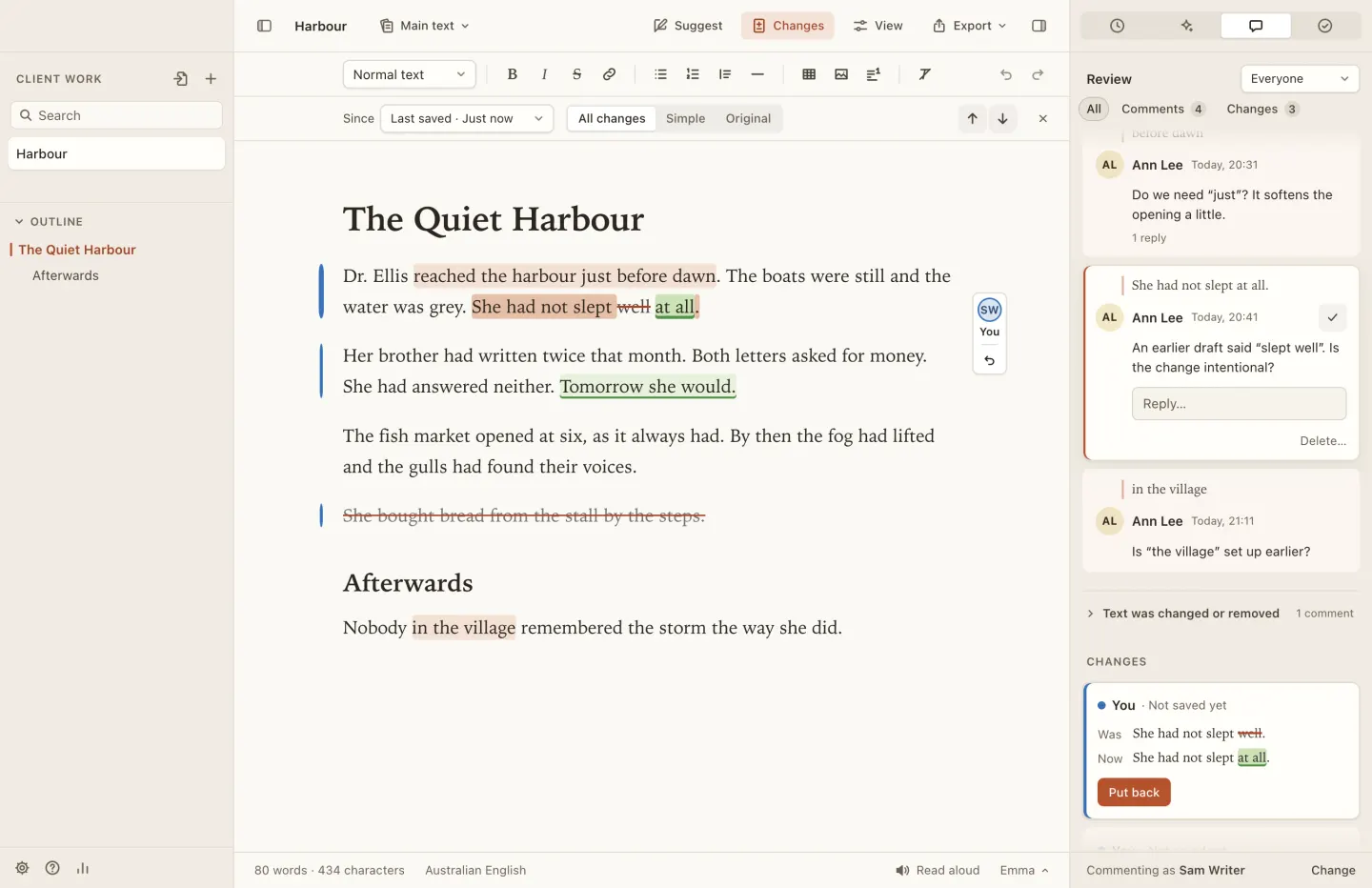
Show changes marks what’s different in the text you’re editing, compared with the last saved version, any version you
pick, or the moment a draft began. Words that were added are green and underlined; words that
were removed are struck through in red. A whole new paragraph is simply tinted green.
Suggest mode is tracked changes done gently. Turn it on and every edit becomes a suggestion with its author and time, for you or a client to accept or reject one at a time or all at once.
Who made each change is shown by a coloured bar beside the paragraph, never by colouring the words: blue for you, plum for the AI, and a colour of its own for each reviewer, chosen to stay distinct for colour-blind readers. A paragraph edited by two people gets a split bar.
-
Three ways to look
All changes in the text, a simple bar in the margin, or the original as it was, read-only.
-
Was and Now
The review list shows each change as it was and as it is now, so you can judge it without hunting through the page.
-
Sentence by sentence
Changes are matched sentence to sentence, so a rewritten line reads as an edit to that line, not a jumble of words.
-
Put it back
Click any change to see the old wording and restore it in one step.
Versions and drafts.
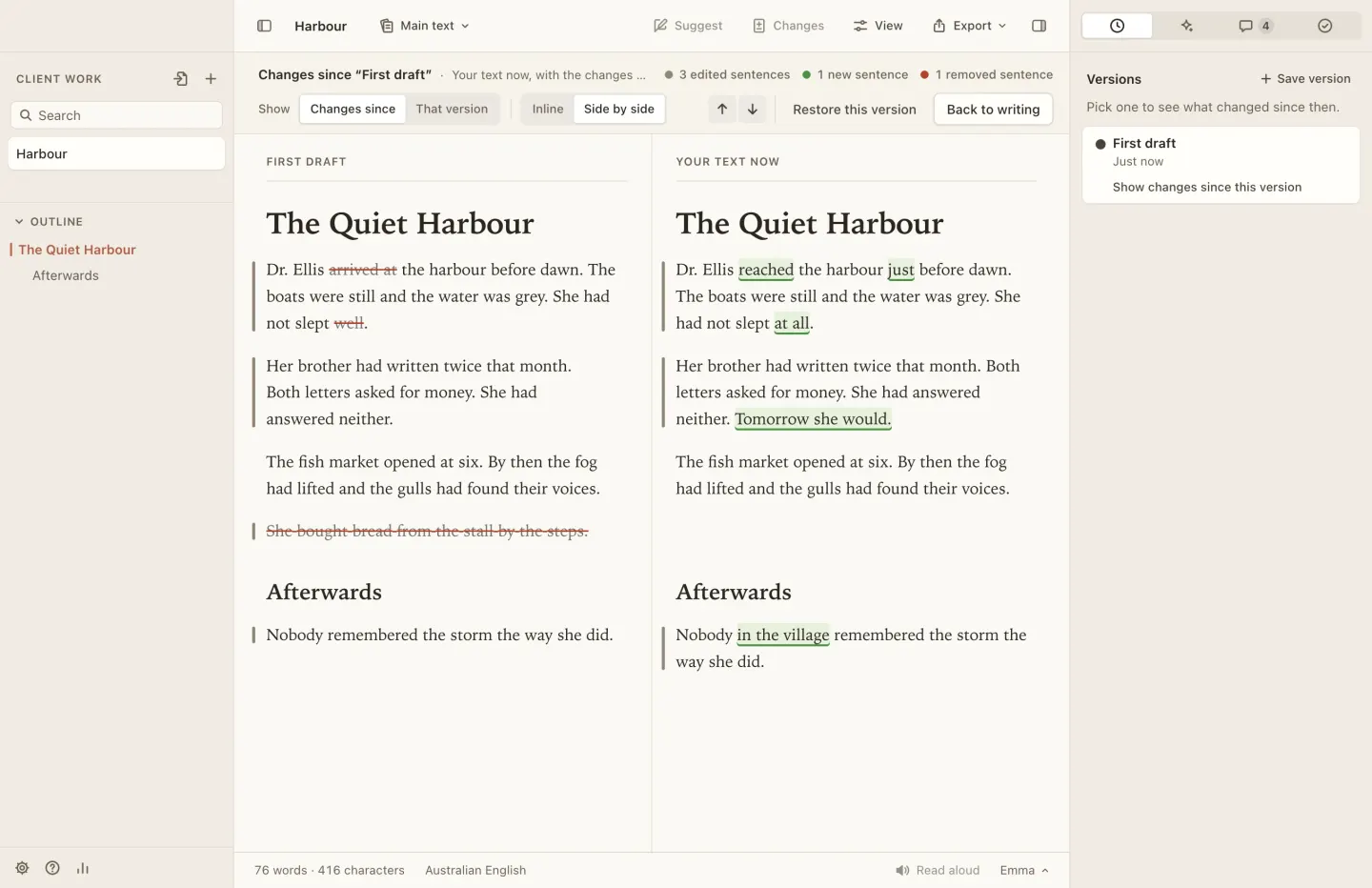
Fullpoint saves a version whenever you pause for a moment, switch documents, leave the app or quit. Press ⌘S to save one with a name of your own, like “Sent to client”.
Open the history to see any version’s changes in the text or side by side, and restore it if you need to. A restore is saved as a new version, so nothing is ever thrown away.
A draft is an alternative version of a document, such as a different ending or a shorter cut. Each draft keeps its own history. Compare it with the main text, then use the changes you want, one by one.
The assistant.
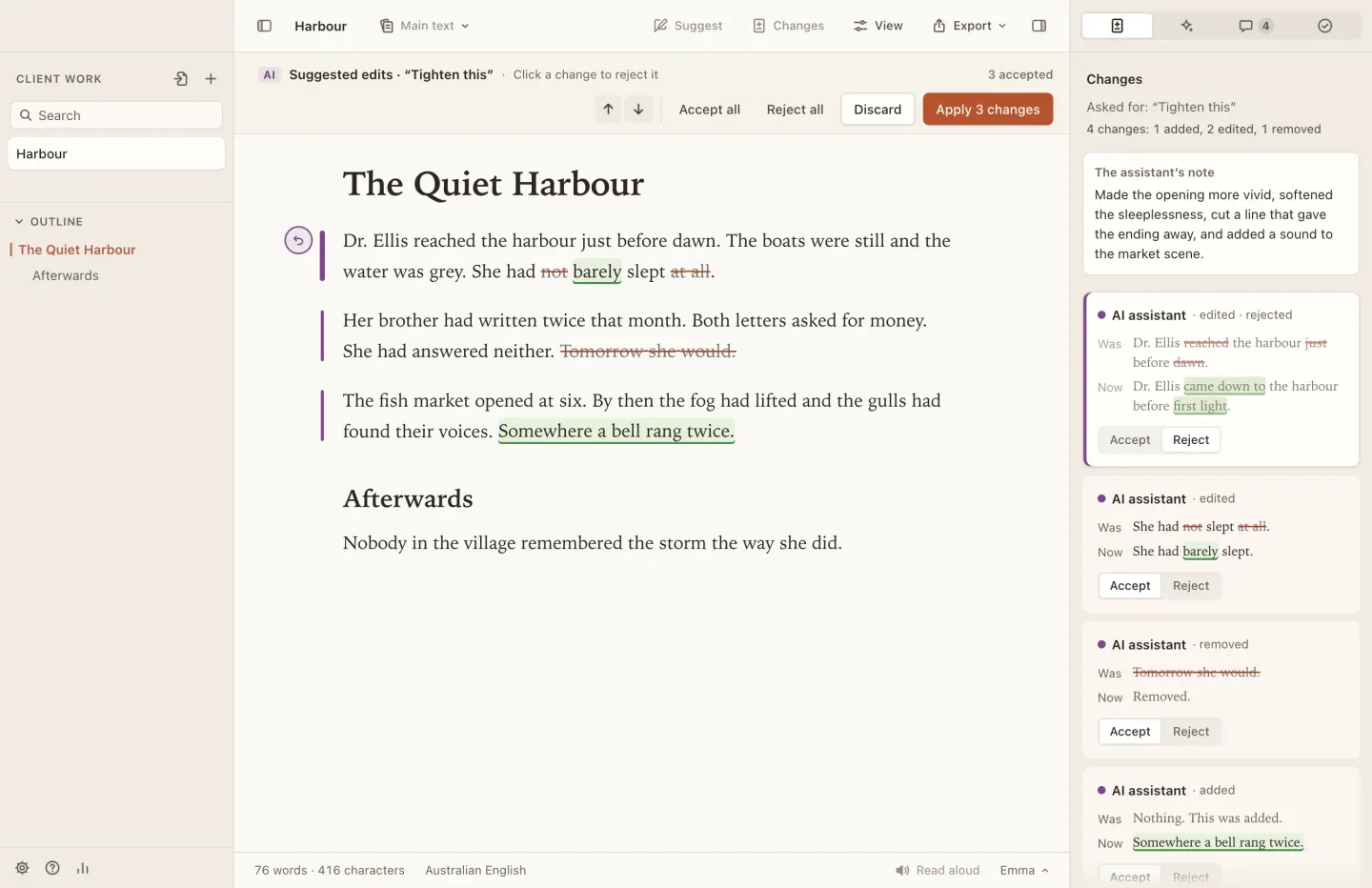
Select a passage, or nothing for the whole document, and ask for a change in your own words, or use a quick action like “Tighten this”. The assistant is Claude, from Anthropic. It sees the whole document so its edit fits, but it only revises the passage you chose.
Its suggestions appear in your text as green and red marks, with a short note explaining what it changed. Accept or reject each one, then apply. A rejected change leaves a small mark in the margin while you review, in case you change your mind.
Your text is saved as a version first, and the applied edit is saved as a separate version marked as the AI’s. Months later, the history still shows which sentences you wrote and which the assistant did.
-
Your own key
Add your Anthropic API key once. It’s checked with Anthropic, then kept encrypted in your Mac’s keychain. Anthropic bills you directly for what you use.
-
A spending limit
Set a monthly limit and Fullpoint estimates each request’s cost before sending it, and stops before going over. The usage meter shows what you’ve spent.
-
House style included
The assistant follows your workspace’s house style, and says so in its note when it brings a passage into line.
-
Never behind your back
The assistant can’t change anything on its own. Every edit waits for you.
Comments.
Select some words and add a comment. Reply, resolve and come back to it later. Comments sit in the side panel, or as cards in the margin beside the words they’re about.
A comment holds on to its words as the text changes. If the words go, it holds on to their sentence. If both disappear it’s kept in a separate list, never silently dropped, and it comes back if you undo.

Checks and house style.
The house style sheet belongs to the folder you work in, so a client’s rules apply to every document for that client: spelling (UK, US, Australian, Canadian or Oxford), the serial comma, numbers, quotes, dashes, heading case and your own preferred words.
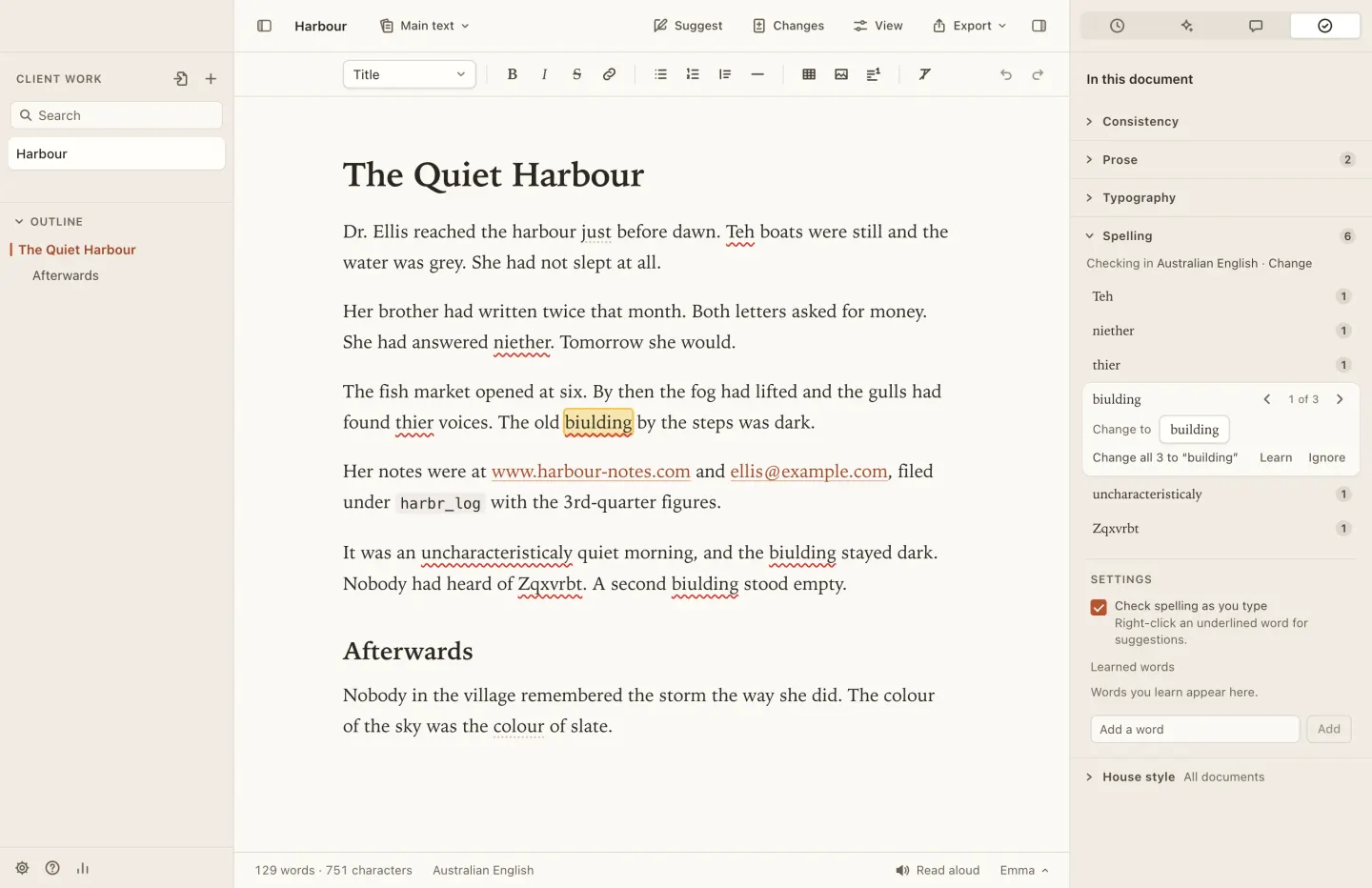
The Checks panel then lists what doesn’t match: mixed spellings, inconsistent hyphens and quote marks, long sentences, the passive voice and repeated words. Each kind of check can be turned off.
Spelling is checked as you type, in the language you choose for each document. Step through each misspelling, change it once or everywhere, learn the word or ignore it. Spelling works offline.
-
Typography, tidied
Curly quotes, proper dashes and ellipses as you type, and a one-click clean-up for text pasted from elsewhere.
-
Formatting marks
Show paragraph ends, spaces and line breaks (⌘8), with double spaces and stray spaces before punctuation picked out.
Read aloud.
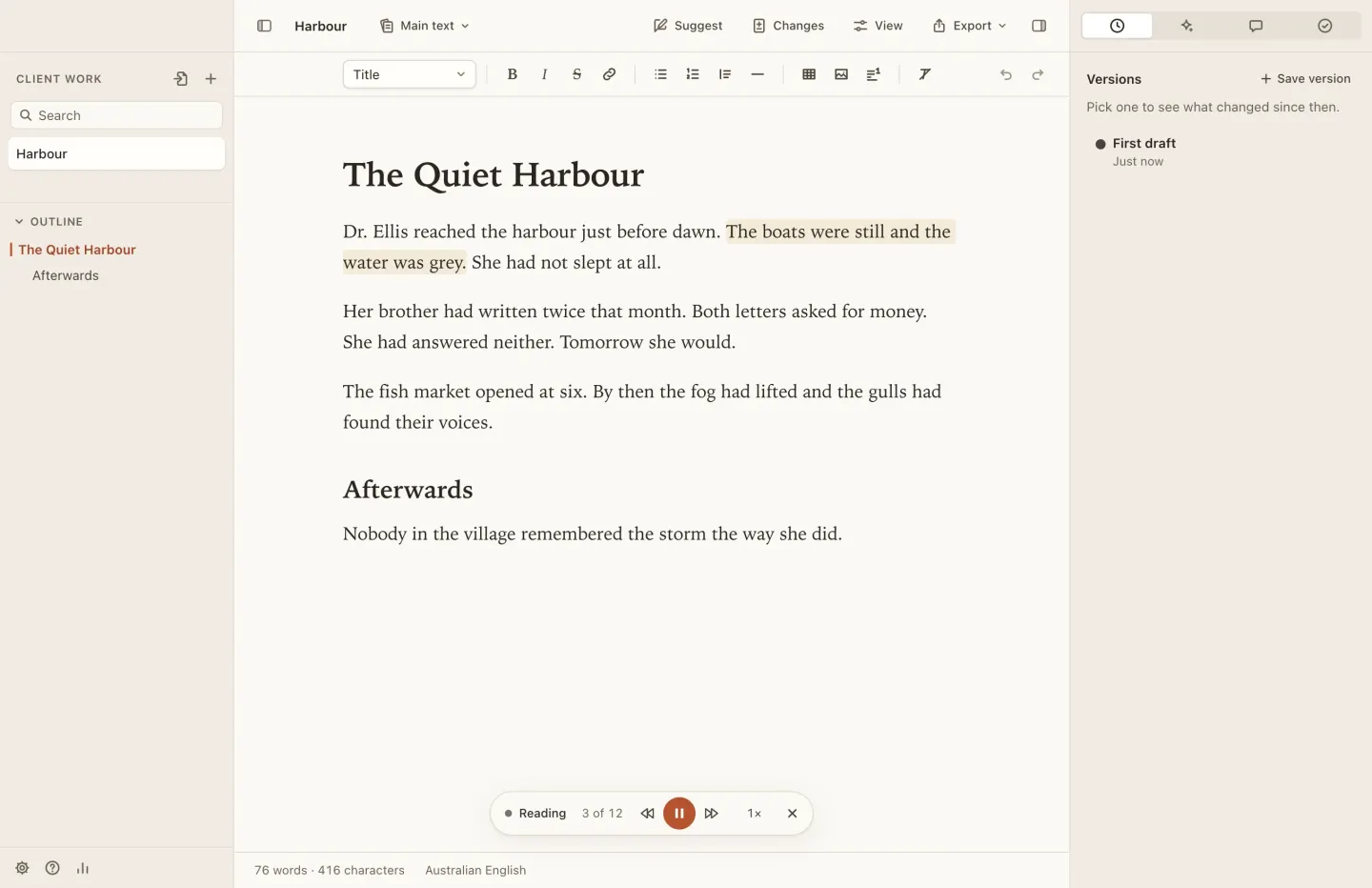
Hearing your words is the oldest proofreading trick there is. Fullpoint reads the selection or the whole document aloud and highlights each sentence as it goes, so a missing word or a clumsy rhythm stands out.
Use your Mac’s own voices, or download a natural-sounding voice once (about 97 MB). The natural voice runs entirely on your Mac and works offline: your writing is never sent anywhere to be spoken.
Word and PDF.
Clients still send Word files. Import one and its tracked changes come in as suggestions you can accept or reject, and its comments come in as comments, with their replies, on the same words.
Send work back as a Word document, with your suggestions as tracked changes and your comments included if you like, so the client sees exactly what you did. Headings, lists, tables, pictures and footnotes come along. Or export a PDF, or print.
A calm place to write.
Your documents are ordinary text files in a folder you choose, saved as you type. If the app ever closed unexpectedly, your words would already be on disk.
-
Rich text, plain files
Headings, lists, quotes, links, tables, pictures and footnotes, stored in files any text editor can open.
-
Find what you need
An outline of your headings, search across every document, and find and replace with match case and whole words.
-
Page view and focus
See roughly where pages will break, or hide everything but the text, with typewriter scrolling if you like it.
-
Light, dark or sepia
Choose a theme, a serif, sans or mono screen font, and a page width. The text in your files is never changed by how it looks.
-
Counts and targets
Words and characters for the document or the selection, reading time, and a word target for each document.
-
Fast with long work
Built to stay responsive with book-length documents.